Sign in and choose a workspace
Who this is for: Everyone.
Before you begin
- You need an email address your company allows for Clositic (your admin may maintain an allowlist).
- If you were invited, use the link in the invitation email instead of this flow — see Accept a team invitation.
Sign in with a magic link
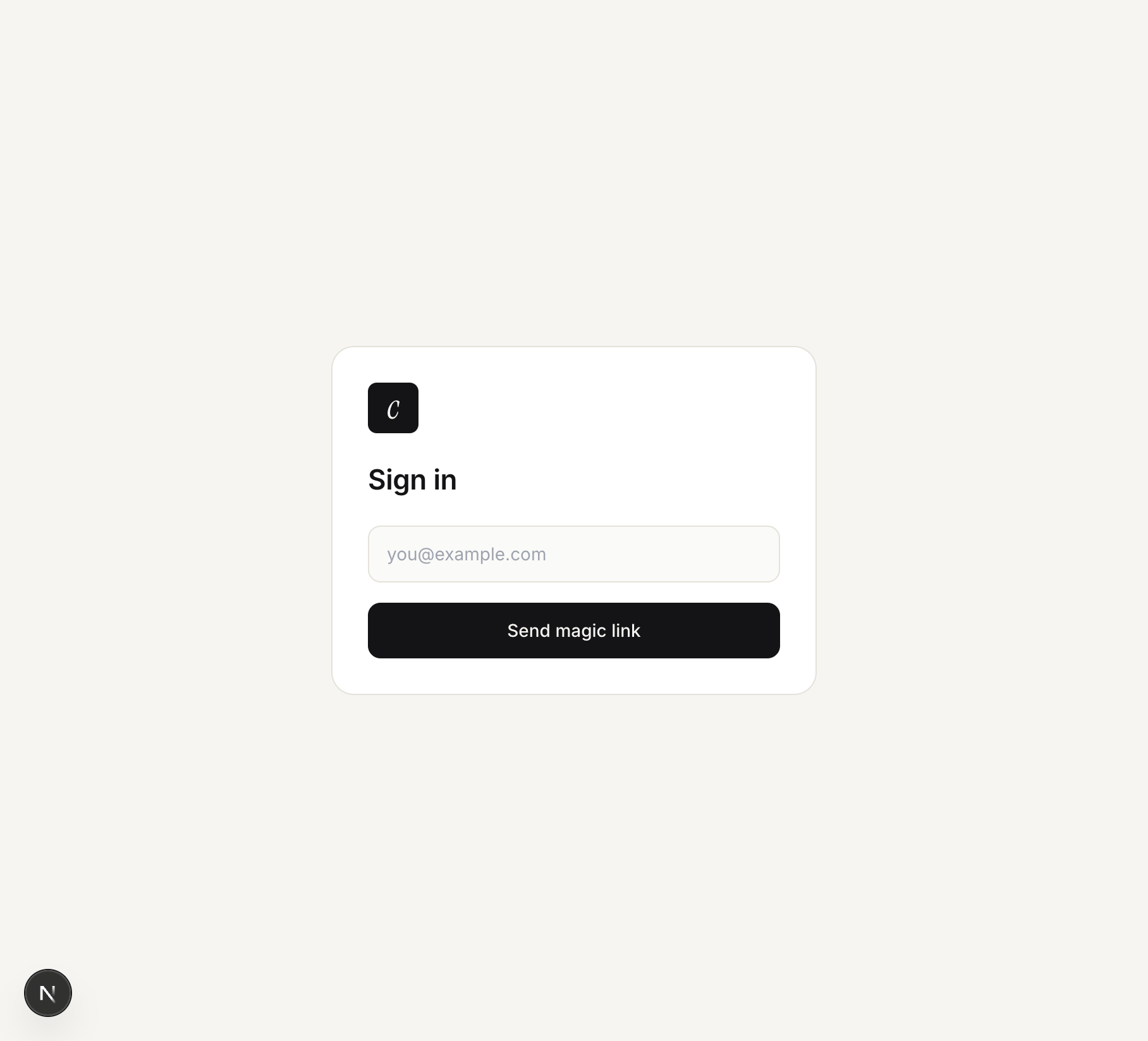
- Open Clositic and go to the sign-in page (for example
https://your-app.com/en/sign-in). - Enter your work email.
- Click Send magic link.
- Open the email from Clositic and click the sign-in link. The link expires after a short time; request a new one if needed.
Choose a workspace
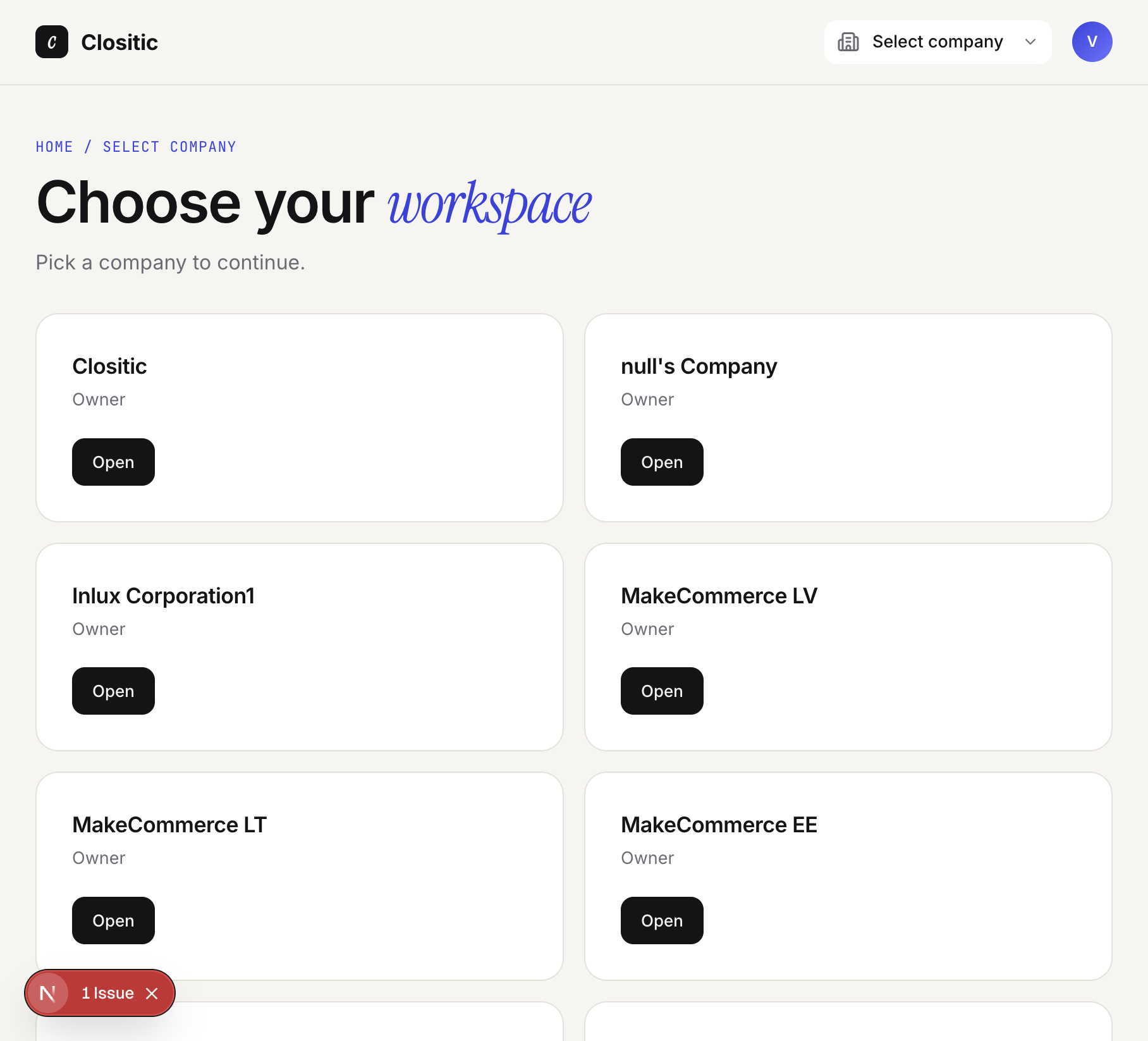
If you belong to more than one company, you’ll see Choose your workspace.
- Find your company card.
- Click Open.
You land on:
- Dashboard — if you are an Owner or Admin.
- AI Training (call setup) — if you are a Member (reps go straight to practice).
Switch company later
Use the company menu in the top bar (Select company / your company name) to return to the workspace list or open another company.
If something goes wrong
- No email for the magic link — Check spam; confirm your email is allowed; ask your admin.
- No companies on the list — Ask an Owner or Admin to invite you. The empty state says you’re signed in but not assigned to a company yet.
- See Troubleshooting.